The dream of playing full-blown Windows PC games on an Android smartphone is no longer a clunky experimental gimmick. Thanks to the massive evolution of Winlator—the premier open-source Android application that uses Wine and Box86/Box64 to translate x86/x64 Windows instructions into ARM-friendly code—mobile PC gaming has arrived. With the latest updates, including Winlator 11.1 and specialized branches like WinlatorXR, you can now run everything from classic RPGs to titles like GTA V directly on your mobile device.
Setting up Winlator requires balancing graphics drivers, translation layers, and processor configurations. This comprehensive, SEO-optimized guide walks you through downloading, installing, configuring, and optimizing Winlator for peak gaming performance.
Why Winlator is the King of Android PC Emulation
Before diving into the technical setup, it is helpful to understand what makes Winlator stand out compared to older solutions like ExaGear or Mobox.
Unlike command-line heavy emulators, Winlator provides a structured, user-friendly graphical user interface (GUI). Under the hood, it seamlessly bundles several critical translation layers:
-
Wine (Wine Is Not an Emulator): Translates Windows system calls into Linux-compatible API commands on the fly.
-
Box86 & Box64: Emulates x86 (32-bit) and x64 (64-bit) instructions onto ARM64 processors.
-
Mesa Drivers (Turnip / VirGL / Zink): Bridges the gap between PC graphics APIs (DirectX/OpenGL) and your mobile GPU.
-
DXVK & VKD3D: Converts DirectX 9, 10, 11, and 12 into Vulkan API calls, allowing modern games to render at respectable frame rates.
With the introduction of frame generation features like Bionic FG and asynchronous shader compilation in recent updates, maintaining playable frame rates is easier than ever.
Hardware Requirements Checklist
Emulating a PC architecture is incredibly demanding on mobile hardware. To run games successfully, verify your device meets these requirements:
| Component | Minimum Requirement | Recommended for AAA Gaming |
| Processor (CPU) | Snapdragon 845 or MediaTek Dimensity 900 | Snapdragon 8 Gen 1 or Newer (Adreno GPUs offer the best driver support) |
| RAM | 6 GB | 8 GB to 12 GB+ (Windows games devour system memory) |
| Android Version | Android 10 or higher | Android 13, 14, or 15 |
| Storage | 20 GB free space | 50 GB+ UFS 3.1/4.0 Storage (PC games have large footprints) |
Part 1: Downloading and Installing Winlator
To avoid security issues and malware, always download official builds directly from GitHub.
-
Open your mobile browser and navigate to the official brunodev85/winlator GitHub Releases page.
-
Locate the latest stable build (e.g., Winlator_11.1.apk) and download the package.
-
Once downloaded, tap the APK file. If prompted, grant your browser permission to “Install apps from unknown sources”.
-
Launch Winlator for the first time. The app will automatically unpack its built-in Obb image and initialize the container runtime environment. This process takes about 1 to 2 minutes.
Part 2: Creating and Configuring Your First Container
A “Container” is essentially an isolated, virtual Windows desktop sandbox. You can create multiple containers with different settings depending on whether you are running an old 2000s RPG or a 2015 open-world title.
To set up a highly optimized container, follow this step-by-step procedure:
Part 3: Transferring PC Games to Android
Winlator does not include a built-in game store, nor does it officially bundle proprietary game assets. You must provide your own DRM-free titles (such as those from GOG or old physical discs) or pre-installed game directories.
The Ideal Directory Workflow
-
Connect your Android device to a PC via USB or use a mobile file manager app.
-
Navigate to your phone’s internal storage and locate the
Downloaddirectory. -
Create a folder named
PC Gamesinside it. -
Copy your pre-installed game folders or offline setup files (like GOG
.exeinstallers) directly into this folder.
Internal Storage/
└── Download/  <-- (This is your D:\ Drive in Winlator)
    └── PC Games/
        ├── Fallout 3/
        └── GTA San Andreas/
Once you launch your Winlator container, you can navigate to D:\PC Games\ via the virtual file explorer to run installers or launch direct game executables.
Performance Optimization Tip: While you can run games directly from the D:\ drive, copying the game folder to the virtual C:\ drive inside Winlator’s file manager can improve loading speeds and structural stability for asset-heavy titles.
Part 4: Tuning Best Settings for Maximum FPS
If your game launches but runs like a slideshow or encounters audio crackling, utilize these targeted performance tweaks:
1. Fix Audio Stuttering and Crackling
Windows games often expect a higher audio buffer than mobile systems default to.
-
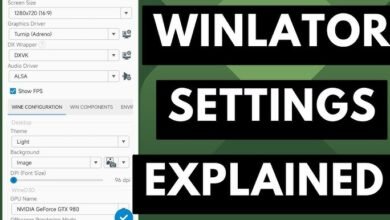
Go to Container Settings -> Audio Configuration.
-
Change the audio driver backend between ALSA and PulseAudio.
-
Increase the Average Latency slider to 90ms or higher. This minor processing buffer completely resolves crackling issues in older game engines.
2. Enable Frame Generation and Frame Metric Overlays
-
Inside the running container desktop environment, open the Winlator Context Menu (swipe back or tap with four fingers).
-
Toggle the FPS Counter option on to view real-time performance diagnostics.
-
If using an experimental version supporting frame generation, toggle the Bionic FG option to interpolate frames and smoother visual output.
3. Fix In-Game Component Crashes
-
Unity Engine Games: If a Unity-based game crashes on startup, change your Box64 configuration preset to Stability, or add
-force-gfx-directinto the executable arguments. -
.NET Framework Errors: If an installer complains about missing software frameworks, open the virtual Start Menu inside the container -> System Tools -> and select Install Wine Mono.
Part 5: Managing Input Controls and Virtual Gamepads
Playing a PC game meant for keyboard and mouse on a flat glass screen requires explicit remapping. Winlator provides an integrated, highly dynamic input control mapping engine.
Setting Up On-Screen Touch Profiles
-
On the Winlator main menu, tap the side navigation menu and select Input Controls.
-
Tap New Profile or click Import Profile to grab layout templates designed by the community for specific game types.
-
Use the visual layout editor to drag virtual analog sticks, d-pads, and dedicated buttons onto your overlay.
-
Bind each virtual button to its corresponding PC equivalent (e.g., bind a big on-screen button to the PC
Spacebarfor jumping). -
Save the profile. Once inside a game, pull up the Winlator container settings menu and toggle on your custom Virtual Gamepad profile.
Alternatively, you can pair a physical Bluetooth controller (like an Xbox Wireless or PlayStation DualSense controller) to your phone. Winlator recognizes these controllers automatically, mapping inputs through its standard XInput translation sub-system.
Emulation Wrap-Up
Setting up Winlator takes patience and experimentation, but the results are highly rewarding. By pairing a modern Snapdragon processor with carefully managed Box64 performance profiles, your phone transforms into a surprisingly capable mobile PC gaming engine.Winlator