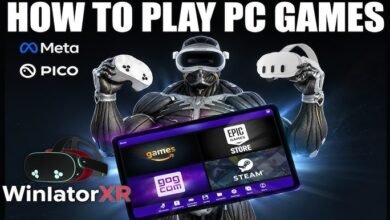
The dream of playing full PC games directly on standalone VR hardware—without a tethered gaming PC, cloud subscription, or high-end desktop wireless streaming—is now a reality. WinlatorXR is an experimental open-source Windows compatibility environment built specifically for Extended Reality (XR) devices. By extending the core emulation technology of Winlator (Wine, Box86, Box64, and DXVK) with OpenXR integration, WinlatorXR allows standalone VR headsets like the Meta Quest 3 and Pico 4 Ultra to execute desktop Windows software and games natively on mobile ARM processors.
Whether you want to play classic DirectX 9 titles on a massive virtual theater screen or experience stereoscopic 3D gameplay on a portable headset, this comprehensive guide covers everything you need to know about WinlatorXR.
What is WinlatorXR?
At its core, WinlatorXR is a specialized fork of the Winlator emulator designed to bridge desktop Windows software with OpenXR runtimes.
Traditional Winlator translates x86/x86_64 Windows binaries so they can run on Android devices powered by ARM processors (such as Qualcomm Snapdragon chips). WinlatorXR takes this foundation and injects spatial rendering and spatial input pipelines into the container architecture.
How the Architecture Works
-
CPU Emulation (Box86 & Box64): Translates 32-bit and 64-bit x86 desktop instructions into ARM64 instructions in real time.
-
Windows API Compatibility Layer (Wine / GLIBC): Provides standard Windows libraries, system calls, and application runtime environments inside an isolated Linux container.
-
Graphics Translation (Turnip, DXVK, VKD3D): Translates Direct3D (DirectX 9, 10, 11, and 12) calls into Vulkan commands. Custom Adreno Vulkan drivers (Turnip) allow mobile GPUs to render desktop graphics with high efficiency.
-
XR Integration Layer (OpenXR API): Maps head orientation, room tracking, and VR motion controllers to system mouse and gamepad inputs.
Key Features & Gameplay Modes
WinlatorXR caters to different gaming preferences by offering versatile visualization modes and store integrations:
1. Flat Virtual Display Mode
In Flat Mode, the Windows desktop or game is rendered onto a high-definition virtual screen inside your VR environment.
-
Analog thumbsticks act as precision mouse controls.
-
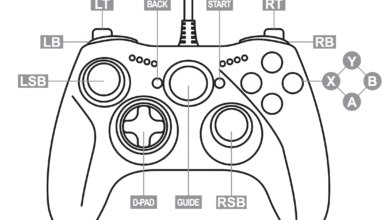
Full support for external Bluetooth controllers (Xbox, PlayStation DualSense, arcade sticks) and physical Bluetooth keyboard/mouse combos.
-
Ideal for real-time strategy (RTS) games, classic RPGs, and 2D indie titles.
2. VR & Spatial Aiming Mode (3DoF / 6DoF)
In VR Mode, head tracking is integrated directly into the game’s camera system.
-
3DoF Head-Aiming: Look around in first-person games (such as System Shock 2 or Alien vs. Predator) where head orientation controls mouse/reticle look.
-
Native WinlatorXR API (6DoF): Special community mods (such as the SixDOFinator project) allow full 6-Degrees-of-Freedom motion controller tracking in supported titles.
3. Stereoscopic 3D Enhancements (ReShade & SuperDepth3D)
WinlatorXR supports ReShade with depth-based shaders like SuperDepth3D. This converts standard flat 2D PC games into stereoscopic 3D spatial experiences, adding true optical depth to legacy titles.
4. Direct Storefront Access
WinlatorXR includes integrated access to digital PC game storefronts:
-
Steam
-
GOG (Good Old Games)
-
Epic Games Store
-
Amazon Games
This allows users to log into DRM-free or lightweight accounts, download owned games directly onto the headset’s storage, and launch them without manually transferring setup files.
Headset Compatibility Matrix
Because WinlatorXR relies heavily on Vulkan driver extensions and Qualcomm Snapdragon processing power, performance varies by headset model:
| Headset Model | Chipset | Performance Tier | Key Considerations |
| Meta Quest 3 | Snapdragon XR2 Gen 2 | Top Tier (Best Experience) | Excellent Turnip driver support; smoothly runs DX9/DX11 titles. |
| Meta Quest 3S | Snapdragon XR2 Gen 2 | Top Tier | Identical processing capability to Quest 3 at lower resolution. |
| Pico 4 Ultra | Snapdragon XR2 Gen 2 | Top Tier (High Performance) | Excellent Turnip driver optimization; delivers superior FPS in select Vulkan titles. |
| Meta Quest 2 | Snapdragon XR2 Gen 1 | Moderate / Budget | Surprising level of stability for older PC titles (AVP, StarCraft, GTA San Andreas). |
| Base Pico 4 | Snapdragon XR2 Gen 1 | Limited | Lacks critical Vulkan driver extensions; limited primarily to DirectX 7/8 games. |
| Play for Dream MR | Snapdragon XR2+ Gen 2 | Experimental | Community-supported port; hardware availability limits active testing. |
How to Install and Set Up WinlatorXR
Because WinlatorXR is an experimental application, it is distributed as an Android APK file via GitHub and SideQuest rather than standard headset app stores.
Recommended Container Settings for Top Games
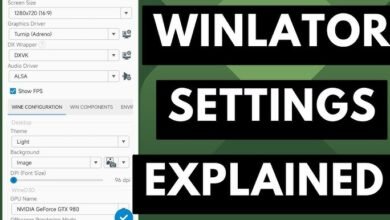
To get playable frame rates on standalone mobile hardware, tuning your graphics configuration is essential:
Optimal General Settings
-
Wine Version:
Wine 9.x (GLIBC / Bionic) -
Box64 Preset:
PerformanceorIntermediate -
Offscreen Rendering Mode:
FBO (Frame Buffer Object) -
Video Memory Size (VRAM):
2048 MBor4096 MB -
Process Affinity: Check all CPU cores to ensure maximum multi-threading performance.
Tested Game Profiles
| Game Title | Driver Choice | DXWrapper | Target Performance | Notes |
| System Shock 2 | Turnip | Direct3D / WineD3D | 60 FPS | Excellent candidate for 3DoF head-aiming VR mode. |
| StarCraft / RTS Games | VirGL / Turnip | WineD3D | 60 FPS | Plays best in Flat Display mode using motion controllers as mouse cursor. |
| Alien vs. Predator (1 & 2) | Turnip | DXVK | 60 FPS | Rebind motion controller buttons for smooth movements. |
| Elder Scrolls IV: Oblivion | Turnip | DXVK 1.10.3 | 35 – 50 FPS | Lower in-game settings to Medium at 720p resolution. |
| Fallout: New Vegas | Turnip | DXVK | 40 – 60 FPS | Use performance-optimization mods in the game directory. |
Troubleshooting Common Issues
1. App Crashes Immediately Upon Launching Container
-
Cause: Incompatible graphics driver or missing Vulkan extensions on older devices.
-
Fix: Switch the container Graphics Driver from Turnip to VirGL (Freedreno) or switch DXWRAPPER from DXVK to WineD3D.
2. Black Screen When Starting Game Shortcut
-
Cause: Shortcut launch script stripping or clearing ReShade / container subfolders.
-
Fix: Avoid starting the game from the shortcut main menu; instead, open the container desktop, launch
File Manager, and start the.exedirectly.
3. Extremely Low Frame Rate (Lag)
-
Cause: The game resolution is set too high for mobile GPU rendering.
-
Fix: In the game’s display settings menu, reduce the output resolution to
1280x720or1024x768and disable anti-aliasing (MSAA/SSAA).